
How to Reply to Facebook and Instagram Messages in Ignite Funnels
Most Kenyan customers reach out on Facebook or Instagram before they ever call. Once your Facebook page and Instagram account are connected, every DM lands in the Conversations tab of Ignite Funnels, so your team can reply, follow up and turn chats into sales from one inbox.
Before you start
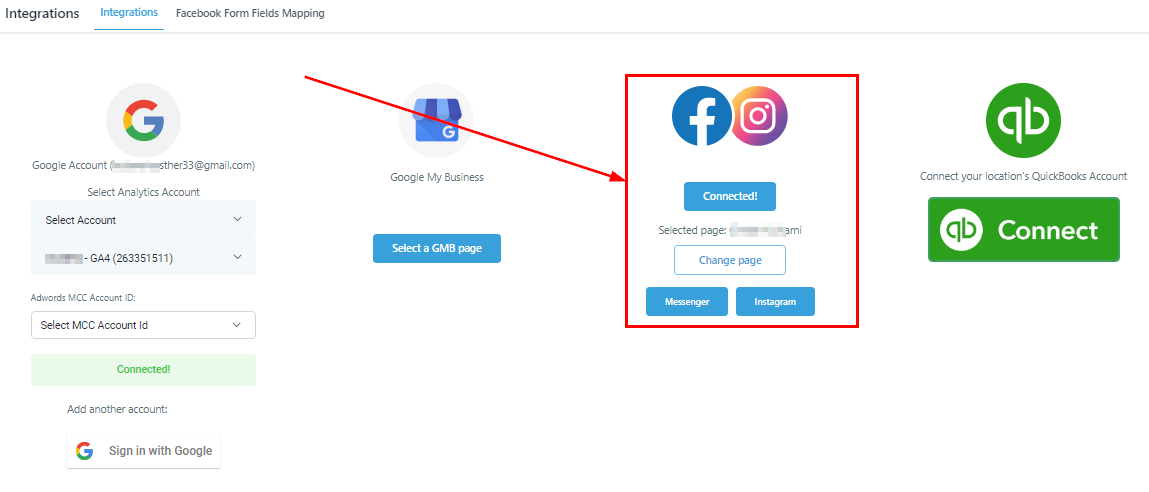
Connect your Facebook page and Instagram business account under Settings > Integrations. When the connection is working, it looks like this:
Replying to a message
- Open Conversations and click the contact.
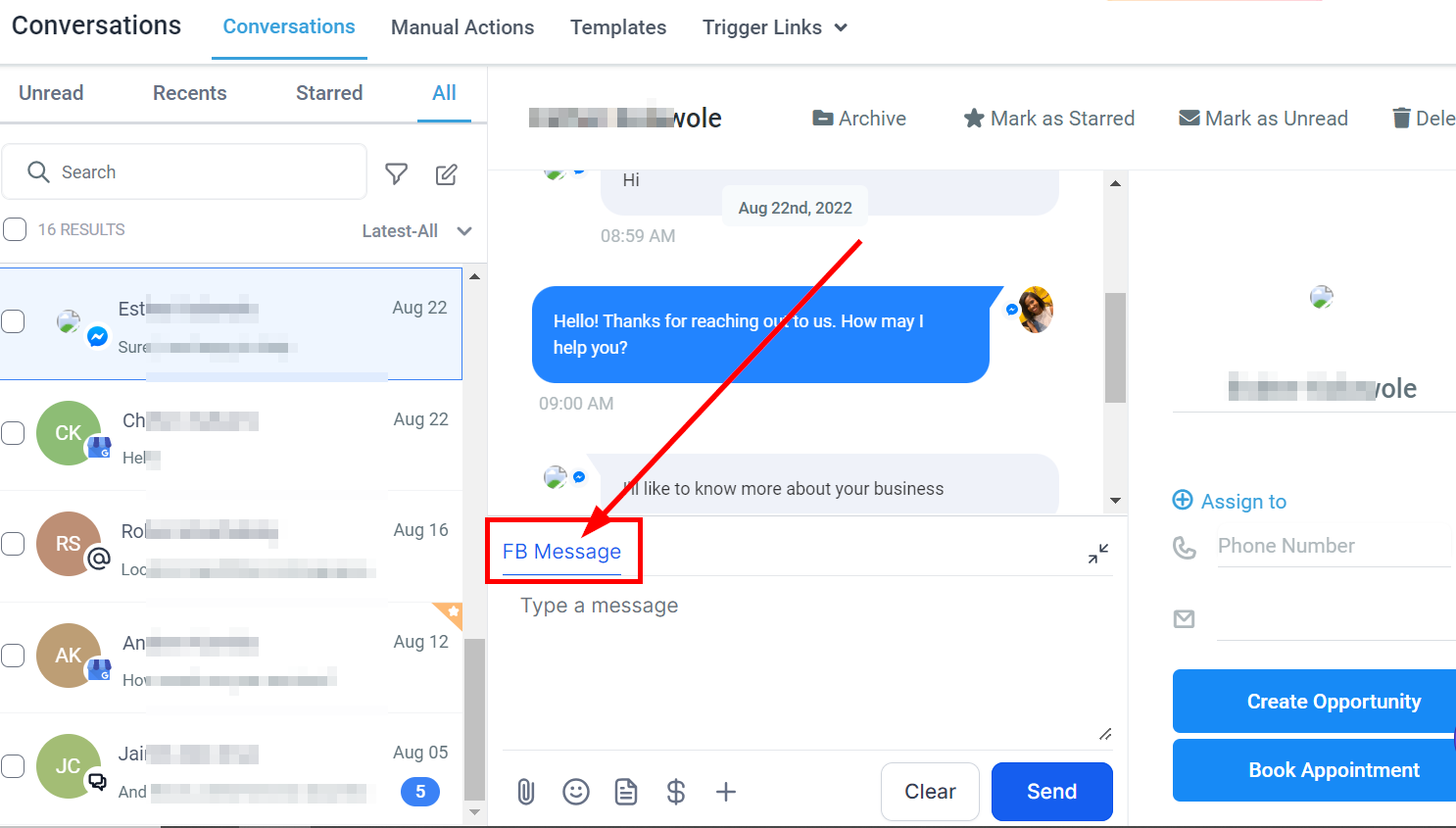
- In the message box, choose Facebook or Instagram as the channel.
- Type your reply and click Send.
You can only message someone on Facebook or Instagram if they messaged your business there first. If they have not, reach them on WhatsApp or by email instead.
See where a message came from
Each message shows a small icon for its source (Facebook, Instagram, SMS, WhatsApp or email). This helps when one customer contacts you on several channels.
Tools in the message box
Attach files and images
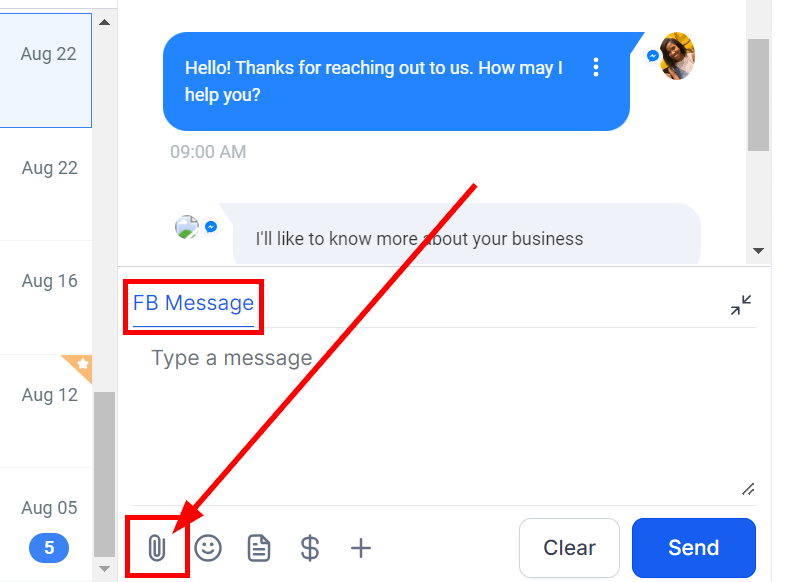
Click the paperclip icon, pick the file from your computer and send. Useful for price lists, menus and product photos.
Add emojis
Click the smiley face icon, search or browse, and click an emoji to add it.
Use a saved template
Click the template (paper) icon, choose a template from the dropdown and click Use Template. Templates save time on answers you give every day, like opening hours, delivery areas or prices in KES.

Request a payment
Click the money icon next to the template icon, fill in the invoice details in KES and click Copy link and mark as sent. Paste the link into your reply so the customer can pay online. Payment options depend on what you have connected under Payments > Integrations, such as M-Pesa or Paystack.

Personalise with custom values
Click the + button to insert custom values, such as the customer's first name or your business phone number.
Collapse the message box
The four-corners icon at the top right collapses the box. This clears anything you have typed, so send or save your text first.
Organising your inbox
- Archive or unarchive: move finished chats out of the way, or bring them back.
- Star: click Mark as Starred next to the customer's name to flag important chats. Click again to remove the star.
- Read or unread: mark a chat as unread to find it again in the Unread tab.
- Delete: removes the conversation permanently. This cannot be undone.
Working with the customer's details
The panel on the right shows the contact's name, assigned team member, phone number and email. If the customer did not share a phone number, ask for it in the chat and type it in. Use the Kenyan format, for example +254 7XX XXX XXX.

Add tags
Click Add Tags under the email, start typing and pick an existing tag, or click + to create a new one. Tags like instagram-lead make it easy to follow up later.
Do Not Disturb
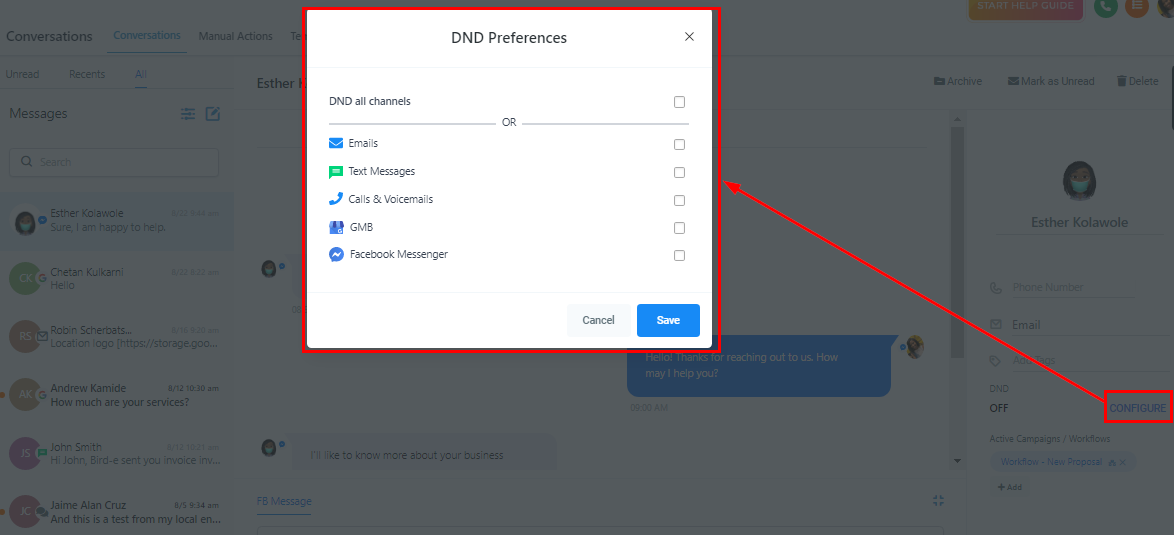
Click Configure under DND to stop messages on all channels, or only the ones the customer does not want.
Add to a workflow
Under the contact details you can see any workflow the lead is already in. Click + Add, pick a workflow and, if you want it to start later, set an Event Start Date. Click Add to confirm.
Create an opportunity
Click Create Opportunity, give it a name, choose the pipeline and stage, set the status, enter the deal value in KES, assign an owner and add the source (for example "Instagram DM"). Click Add.

Book an appointment
Click Book Appointment, choose the team calendar, check the time zone is Africa/Nairobi, then pick the date and slot. Add a title and notes if needed. Under + Additional Preferences you can set the location and mark the appointment as confirmed or unconfirmed.
Need help?
Click the help button in the bottom right corner of your Ignite Funnels account to search more guides or chat with our support team.